Raph Rover Web User Interface
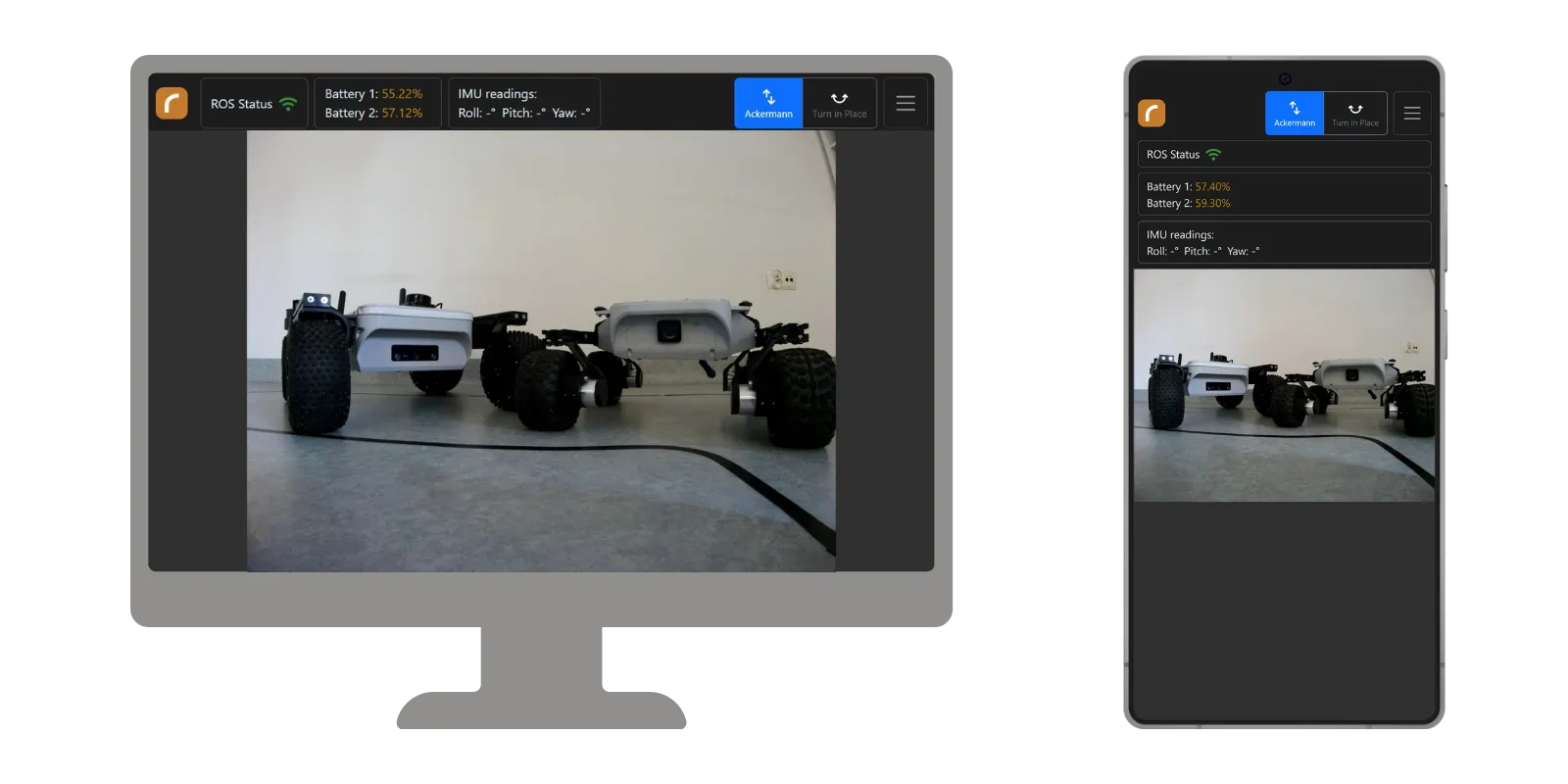
Raph Rover UI is a responsive web-based user interface for controlling and monitoring the Raph Rover robot. Built with React and TypeScript, it provides real-time communication with ROS (Robot Operating System) through rosbridge.
Main features
- Real-time camera feed: View live video stream from the robot's camera.
- Robot status monitoring: Monitor battery level, connection status, imu readings, and other vital statistics.
- Teleoperation controls: Control the robot's movement using on-screen joystick or keyboard/gamepad inputs.
- Responsive design: Access the UI from various devices, including desktops, tablets, and smartphones.
Quick start
To access the Raph Rover Web UI, ensure your computer or mobile device is connected to the same network as the Raph Rover.
Open a web browser of your choice and navigate to: raph.local or 10.10.0.2.
UI will automatically connect to the robot and display the camera preview as well as navigation bar with robot status.
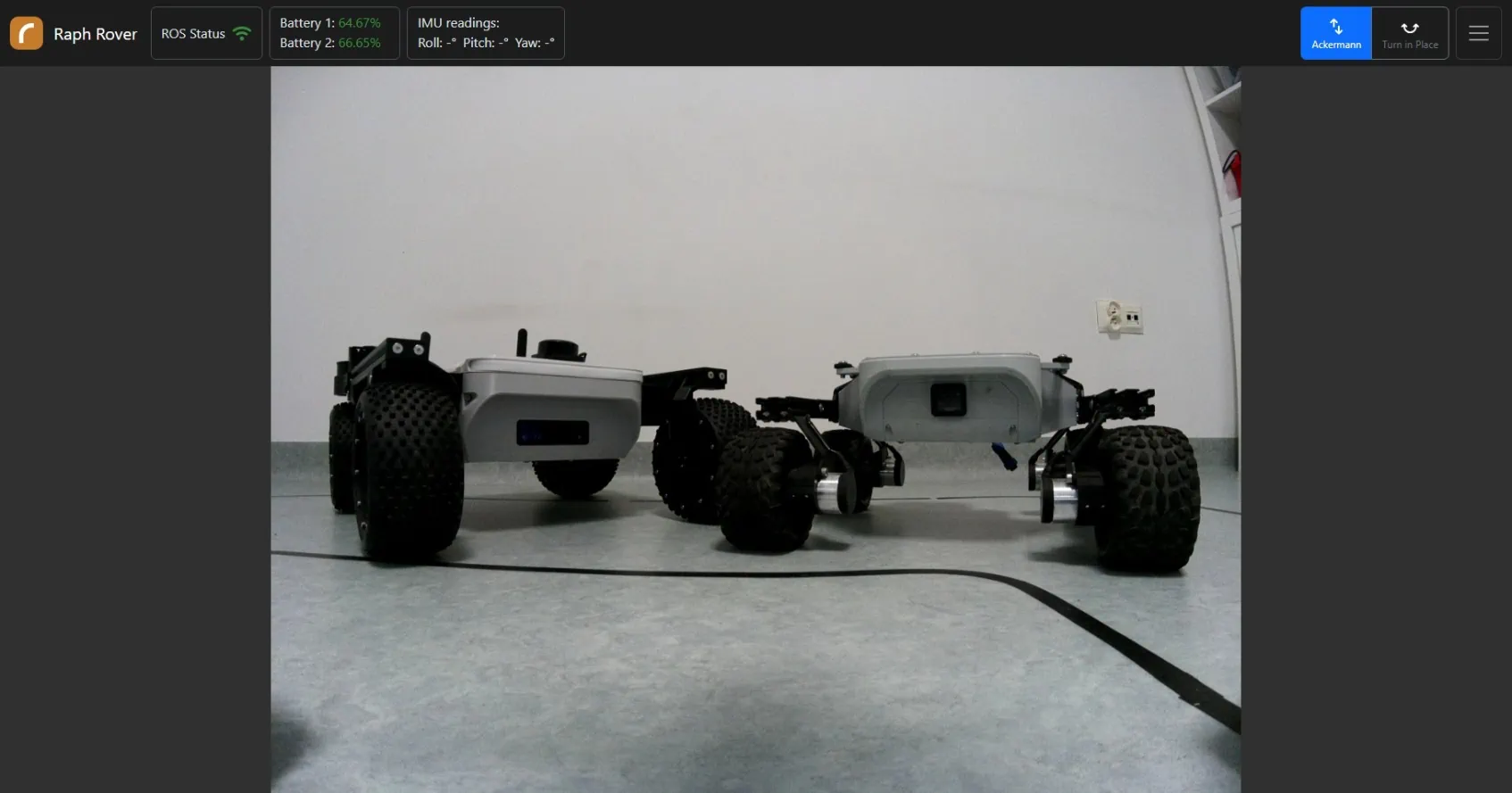
After each reboot it is necessary to calibrate the servo motors. Toggle hamburger menu in the top right corner and select Calibrate wheels option.
To start driving with the robot you can use either the on-screen joystick or keyboard/gamepad inputs. Toggle hamburger menu in the top right corner and select Enable driving option as well as your control method of choice.
You can use gamepads, including Xbox and PlayStation controllers, with the Web UI. First, connect your gamepad to your device (via cable or Bluetooth). The UI will confirm the connection with a "Gamepad connected" notification. After enabling driving you will be able to start controlling the robot with the gamepad.
Your Raph Rover is now ready to be driven around!
Overview of the UI components
Main view
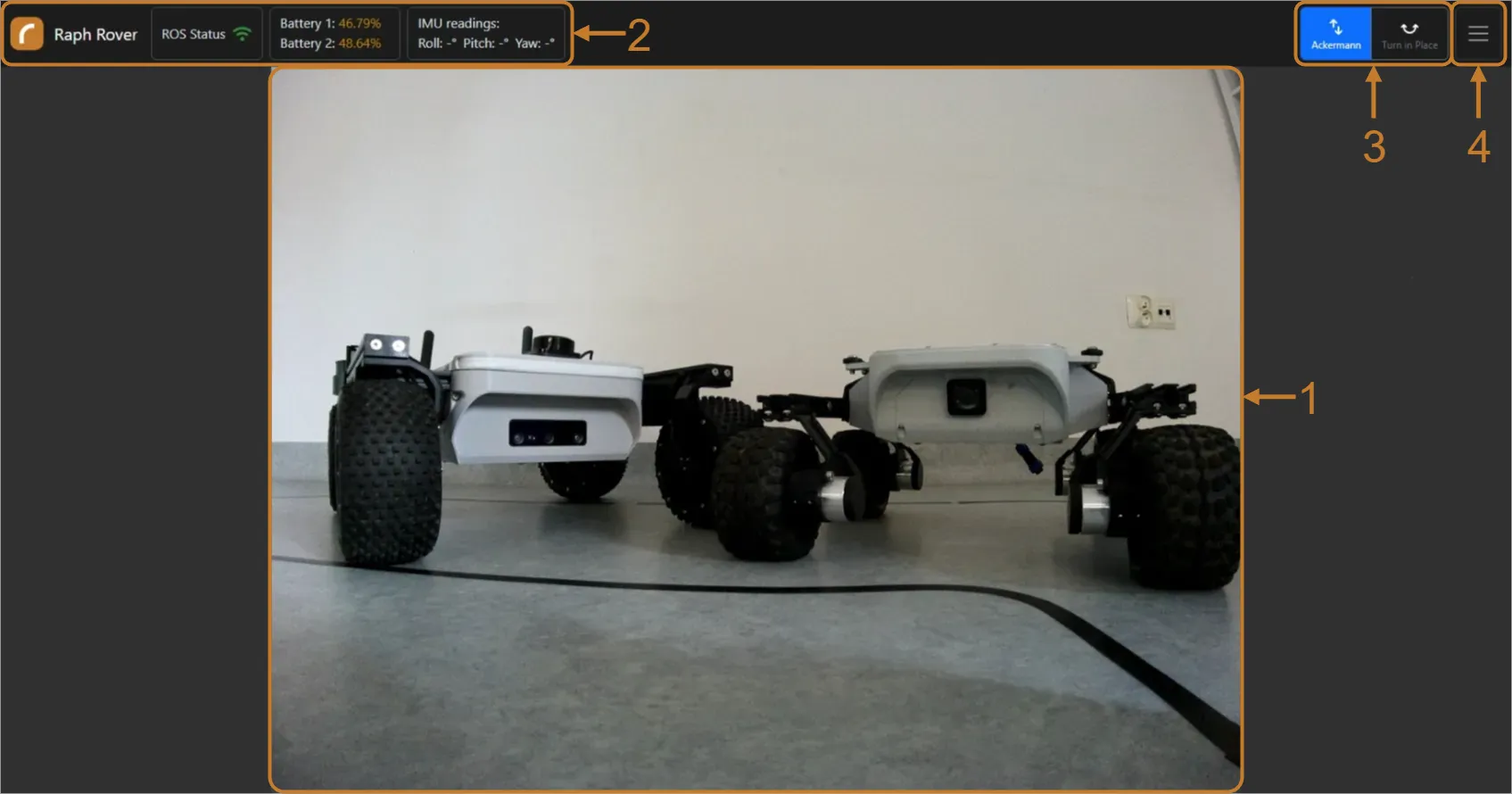
- Camera feed (1): The main area displays the live video stream from the robot's camera.
- Status bar (2): Located at the top, it shows vital statistics such as battery level, connection status, and imu readings.
- Steering mode switcher (3): Toggle between different steering modes (ackermann or turn in place) using the selection buttons in the top right corner.
- Hamburger menu (4): Access additional options such as calibration, driving enable/disable, and settings.
Hamburger menu view
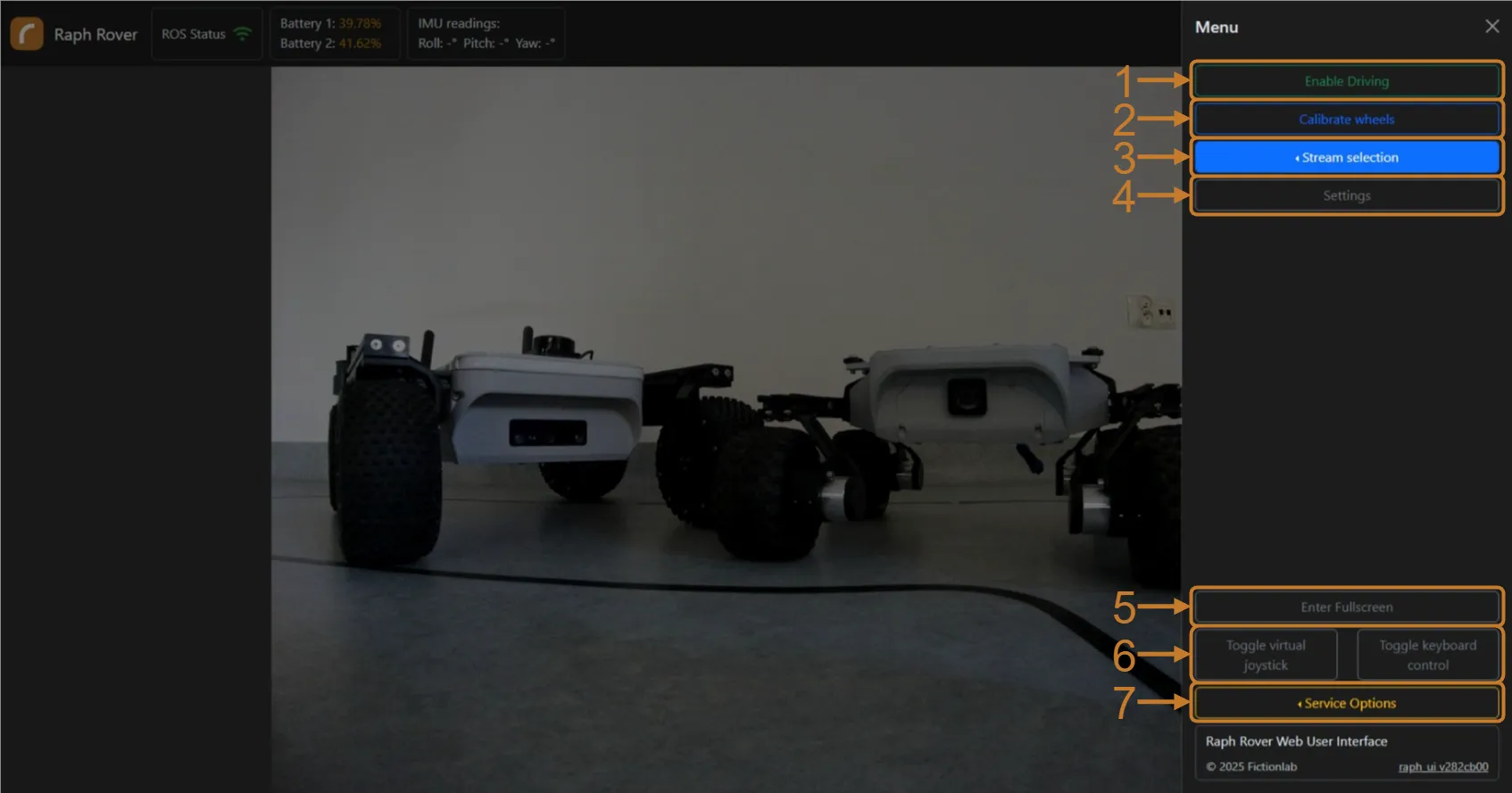
- Enable driving (1): Toggle robot driving controls on or off.
- Calibrate wheels (2): Calibrate the servo motors of the steering wheels.
- Stream selection (3): Choose between different camera streams from OAK-D cameras.
- Settings (4): Access additional settings and configurations for the UI.
- Fullscreen mode (5): Enable or disable fullscreen mode.
- Toggle controls button (6): Enable or disable the on-screen joystick and keyboard controls.
- Service options (7): Access additional services such as restarting or shutting down the on-board computer.
Extending the UI
Raph Rover Web UI is an open-source project available on GitHub. Feel free to explore the codebase, contribute to the project, or customize the UI to suit your specific needs.
For detailed instructions on setting up the development environment, building, and deploying the UI, please refer to the readme file in the GitHub repository.
Community & resources
If you get stuck or run into any issues with the robot, remember: you are not alone! Join our Discord community to access a private support channel directly with Fictionlab employees. Alternatively, you can simply contact us by email.